Features
An original multi-viewer
NEO PDO includes an original multi-viewer that handles Word, PowerPoint, Excel, PDF, web pages, patent drawings, e-mail, and Explorer.
There is no need to reopen each reference in a separate application: documents, drawings, spreadsheets, web information, e-mail, and files in a folder can all be reviewed by switching between them on a single work screen.
Multiple references can be kept open as tabs, so you can move back and forth between the information you need and view, compare, and edit it smoothly.
Versatile areas and layouts
The areas you need for viewing and editing — the control panel, viewing area, editing area, case folder list, chat area, terminal, and more — can be displayed and arranged flexibly.
Every area except the control panel and the viewing area can be shown or hidden as needed, and the direction in which areas expand can be swapped between left and right. The viewing area can also be detached from the main window as an independent window and docked back again.
Whether your work is viewing-oriented or editing-oriented, and whatever your screen size or monitor setup, you can lay out the information you need for easy reading and build an environment that fits your own working style.
Build your working environment automatically from an official communication
Dropping an official communication onto the "OCR analysis of official communications" window extracts information on the publication of the application at issue and on the cited references, and NEO PDO then collects those publications and documents automatically from the network.
Once collection is complete, a viewing area for displaying the documents and a control panel with buttons for switching between them are launched. The jurisdictions covered by the analysis are EP, US, JP, and CN, as well as WO-ISA documents incorporated in EP proceedings. During the automatic collection process, publication PDFs and image files for the drawing viewer are also saved automatically.
Simply dropping an official communication prepares the documents you need, so you can start working right away.
Automatic retrieval of non-patent literature
NEO PDO now also retrieves non-patent literature using AI.
When non-patent literature information is extracted from an official communication, a shortened title is generated automatically for the list view, while the detailed bibliographic information given in the official communication is used for the AI-based search and retrieval of the document itself.
Covering non-patent literature as well as patent documents, NEO PDO makes the path from dropping an official communication to building your working environment even more efficient.
Output tablet-ready PDO files
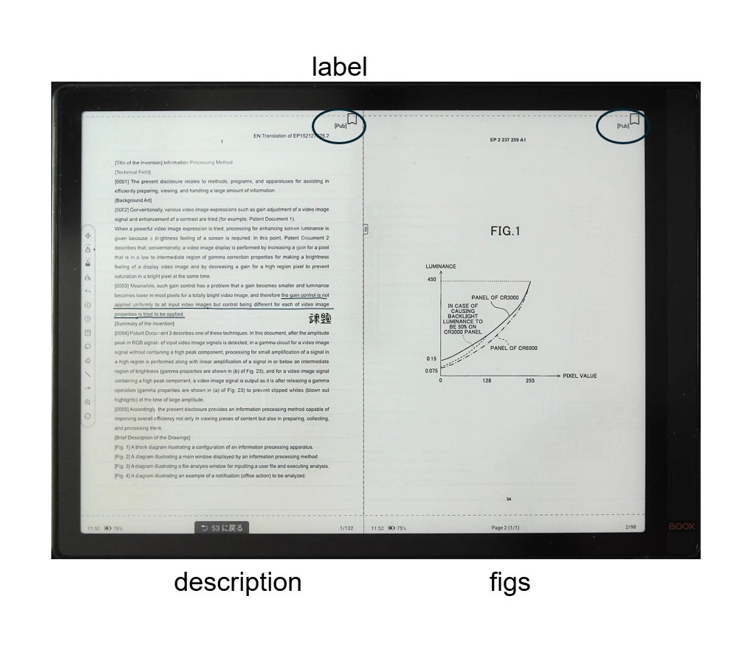
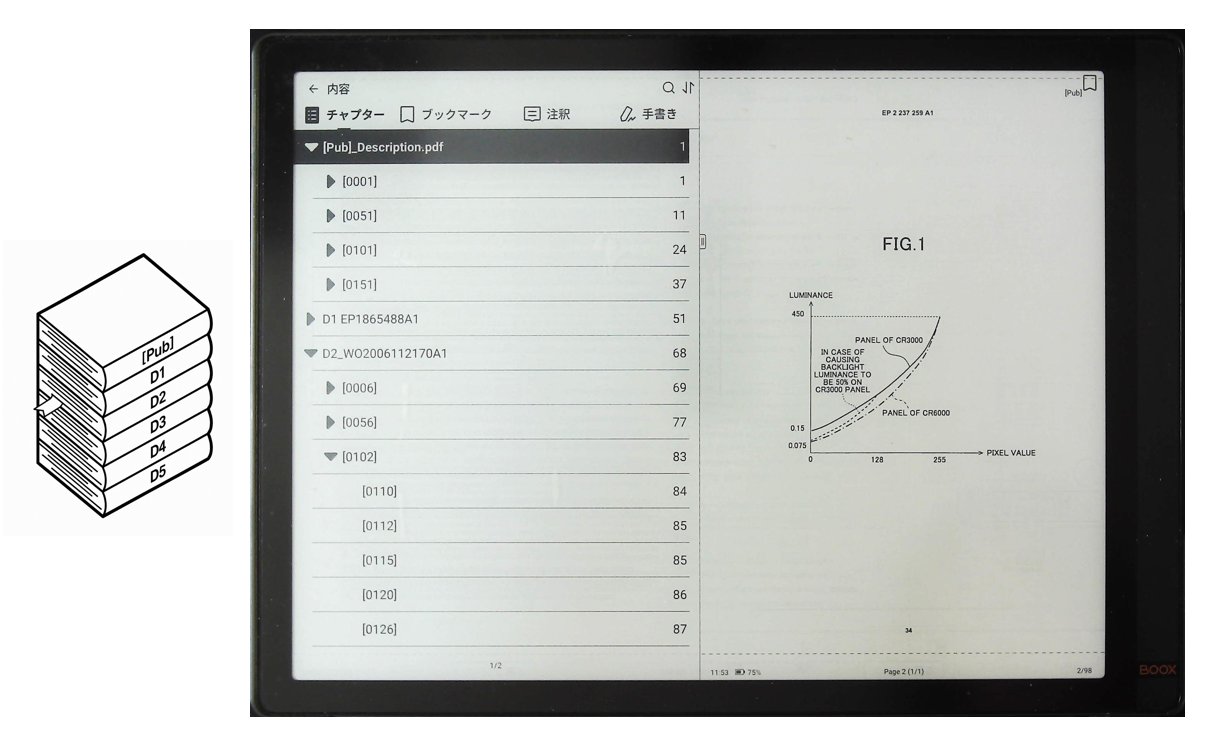
At the same time as retrieving references from the network, or as a separate operation, NEO PDO outputs PDFs with labels, reference numbers, and hierarchical bookmarks based on paragraph numbers or page numbers.
It can output PDFs classified into claims, description, drawings, and other sections, making it convenient to display the description and drawings side by side on a tablet.
Stacked references can be opened directly at the target location using bookmarks, making this ideal for paperless work.
Patent drawing viewer
NEO PDO includes a purpose-built patent drawing viewer for reviewing patent drawings efficiently.
You can scan through the whole set of drawings by scrolling with the mouse, while selecting a thumbnail image takes you straight to the drawing you want.
Rotating and zooming are just as simple, so you can manipulate and view patent drawings freely.
Interact with AI that understands the prosecution history
You can classify patent documents such as specifications, claims, official communications, and cited references and share that information with AI. This allows you to interact with AI that understands the prosecution history throughout the patent prosecution process.
You can also create your own classifications and share non-patent information with AI for uses beyond prosecution.
The "AI Sharing" tab shows both the information being shared with AI and any information excluded from sharing for security reasons.
Chat that recognizes Word revision history and formatting
NEO PDO’s AI chat recognizes tracked changes in shared or attached Word files. This means you do not need to separately prepare a clean version with the tracked changes applied to help the AI understand the amendments, or provide pre- and post-amendment documents for comparison, as you would when sharing amendments with a general-purpose AI.
It also recognizes table structures and text formatting in Word, so you can share documents with AI while preserving as much of their original information as possible. You can discuss the document directly without worrying about information being lost through revision history or formatting.
Send selected text
With NEO PDO, quoting text does not require selecting it and then copying and pasting: the selected text is simply “sent” to the position you want.
Pressing "Ctrl+C" together with an arrow key (in the direction where the editing area is placed) sends the selected text to the file being edited. Pressing "Ctrl+C" with "↑/↓" steps back through the last three cursor positions in the editing area, and the text is sent to the position where you release "Ctrl+C".
Quoting from a document shown in the viewing area, or from an amendment you are editing in parallel, becomes remarkably easy. Freeing you from repeated paste operations significantly improves work efficiency.
AI Writing Check
The AI engine you specify checks the entire document or a specified range of text and uses comments and history to present suggested revisions, making the proposal and the affected text immediately clear.
Hovering displays accept/reject controls, so you can process each suggestion in sequence.
Clone function
In patent practice, you may want to place the document you are editing beside its earlier wording, or keep a wide chat area for AI while referring to publications and drawings. NEO PDO includes a convenient clone function for just such situations.
The clone function temporarily duplicates the document or information shown in the viewing area or editing area into the other area. By temporarily borrowing an existing area, you can make effective use of limited screen space without opening another window.
Flexible control of Word track changes
Word track changes are part of everyday patent practice. Whether you want to convert text while preserving its revision history, create a clean version, or return to the state before an amendment, NEO PDO streamlines these operations.
For selected text, you can copy and paste while converting track changes into the format you need. You can also create clean versions and pre-amendment versions without opening the Word document. This makes patent practice involving documents with track changes more flexible and faster.
Remember and restore your work environment
The state of everything you had open in the viewing area, including numerous web pages, Office documents, notes, patent drawings, emails, File Explorer windows, and clones, can be restored simply by selecting the case the next time you launch NEO PDO. Tab-button styling, AI sharing information, and chat content are also remembered.
You can pause at any time, even in the middle of a complex work session with many applications, files, and folders open while chatting with AI and editing documents. When you resume, you can immediately pick up where you left off without having to reopen or rearrange everything one by one.