Quick Start Guide
Download the Windows installer for PDO from this link and double-click to install.
Immediately after installation starts, a Windows SmartScreen warning may appear. Click "More info" and then select "Run anyway".
Once you select your language and accept the licence agreement and privacy policy, the Welcome screen shown below will appear. Start by clicking "Continue as trial".
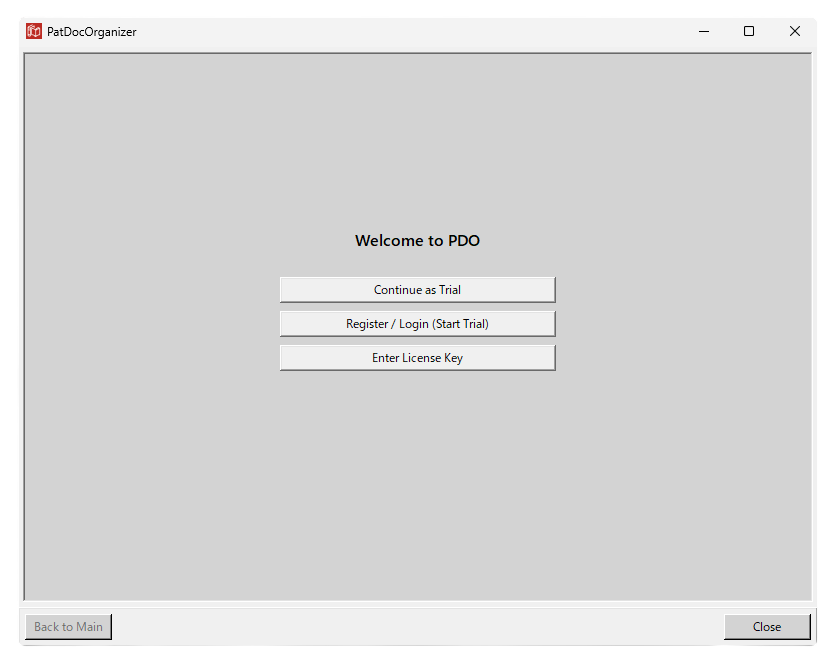
Selecting "Continue as trial" brings up the Main Menu shown below. The full sequence from office action analysis through to Chrome display can be used 3 times, and individual standalone features can be used 5 times as a trial — no account registration required.
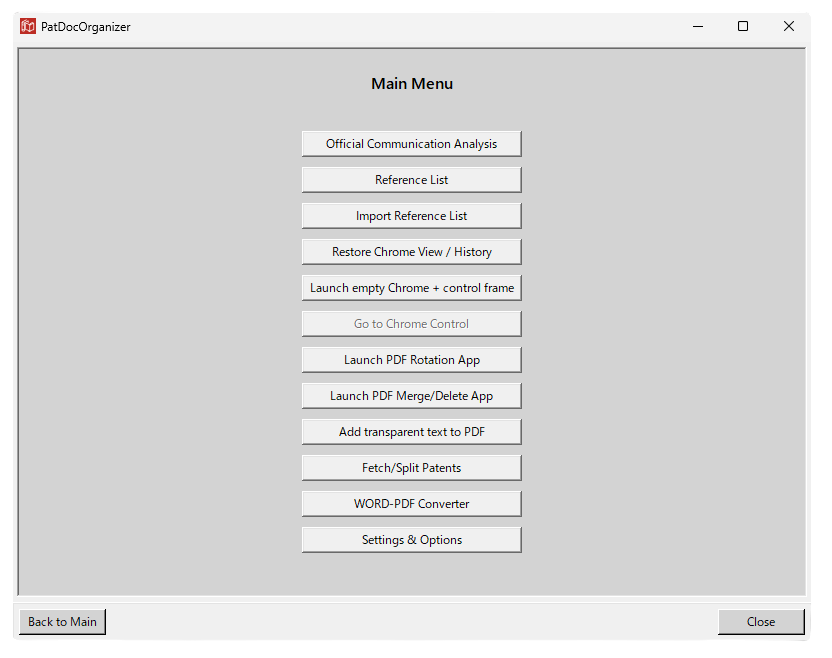
Select "Official Communication Analysis " from the Main Menu. You will be taken to a drag-and-drop window for loading the offial communcation (PDF in case of EP), as shown below.
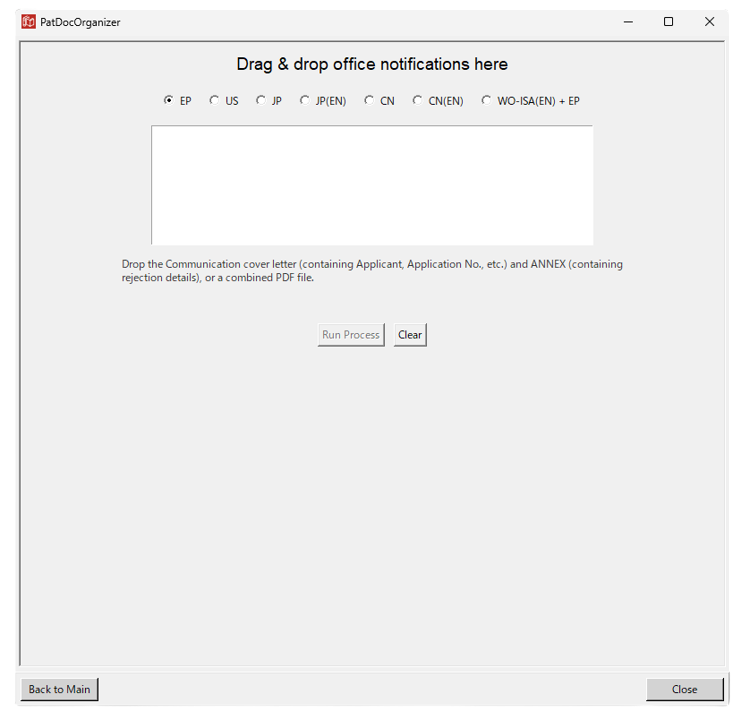
Select the jurisdiction of the official communication — EP, US, JP, or CN — so that PDO applies the correct parsing format (analysis of ISA opinions for responses under EPC Rules 161(1)/162 is also supported).
Then drag and drop the official communication file in a supported format (EP: PDF; JP: PDF/HTML; US: PDF/WORD; CN: PDF) into the white box.
Click "Run Process" to start the official communication analysis.
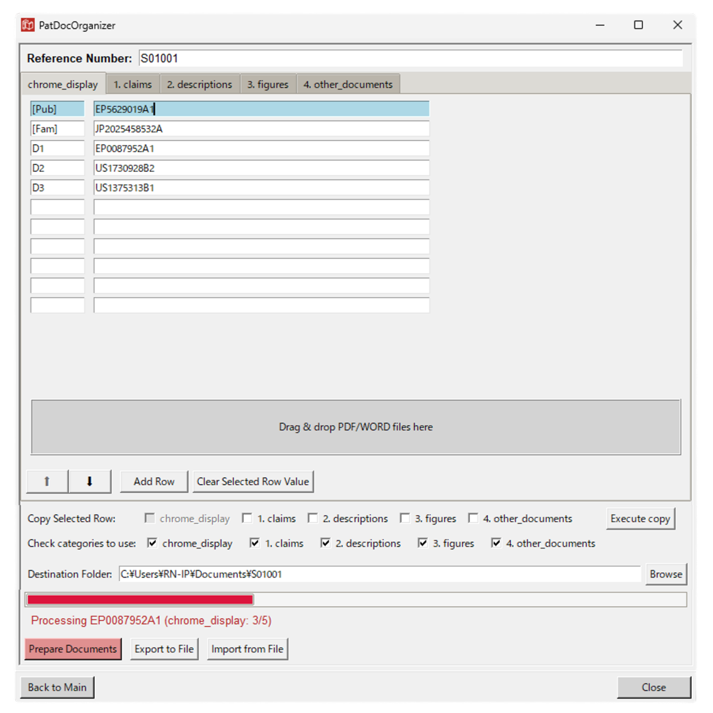
When analysis is complete, PDO transitions to the reference-list display window below, populated with information extracted from the official communication.
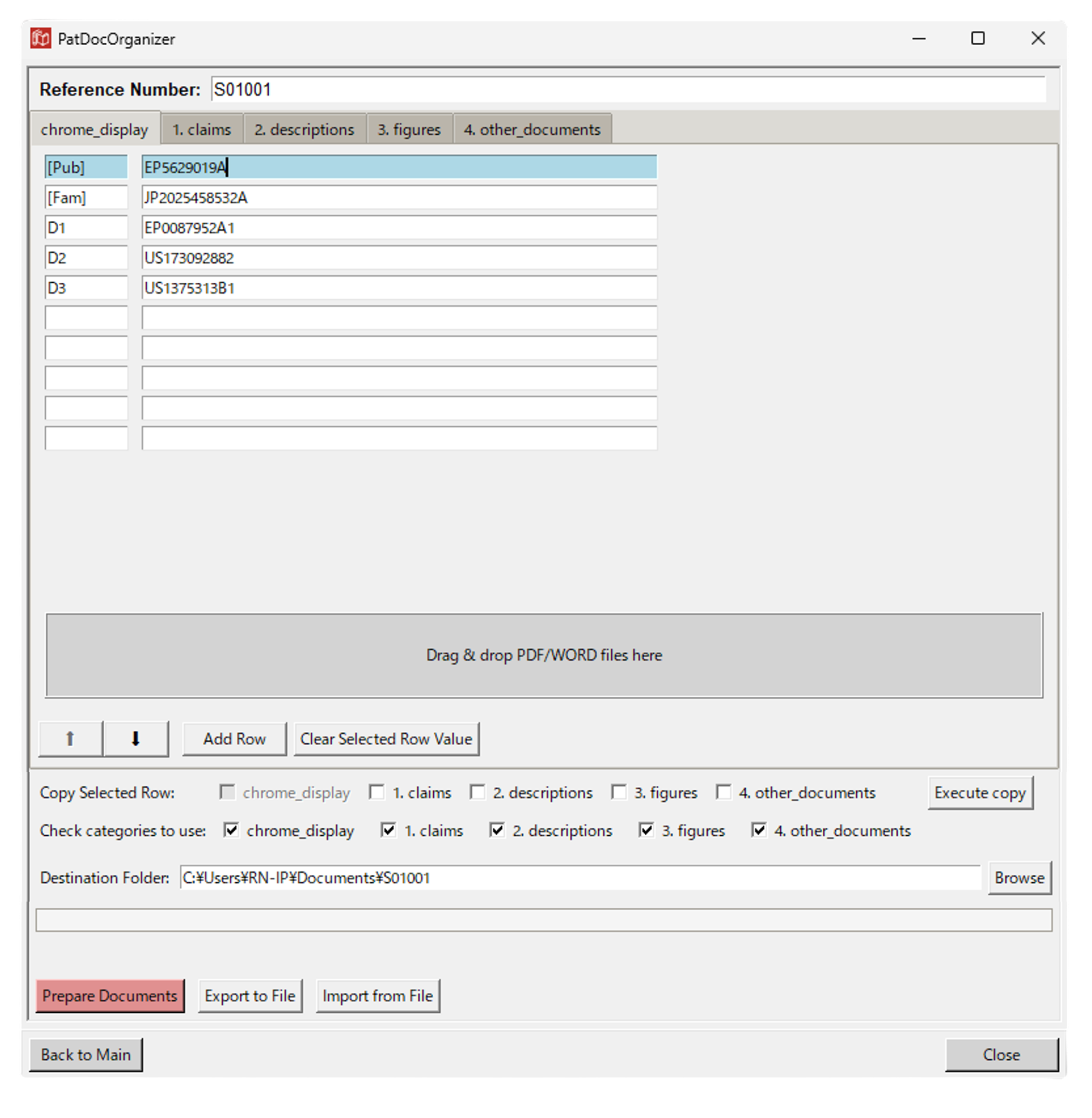
The Chrome_display tab shows the items that will later be displayed in Chrome:
- The publication identified from the application number in the official communication
- A corresponding family publication according to the selected language, if available
- Cited references (patent documents only)
These will become the Chrome display content, so verify that labels correspond to the correct citation numbers.
Also review and adjust the following pre-filled fields as needed:
- Reference Number: the case ID (docket number) for this case
- "Output Folder": folder where PDFs for each tab and URLsList.txt will be saved
Once you have finished reviewing, click "Prepare Documents". A progress bar and status text will appear at the bottom, as shown below.
When processing is complete, Chrome launches automatically, displaying the corresponding Google Patents page and the PDO control panel.
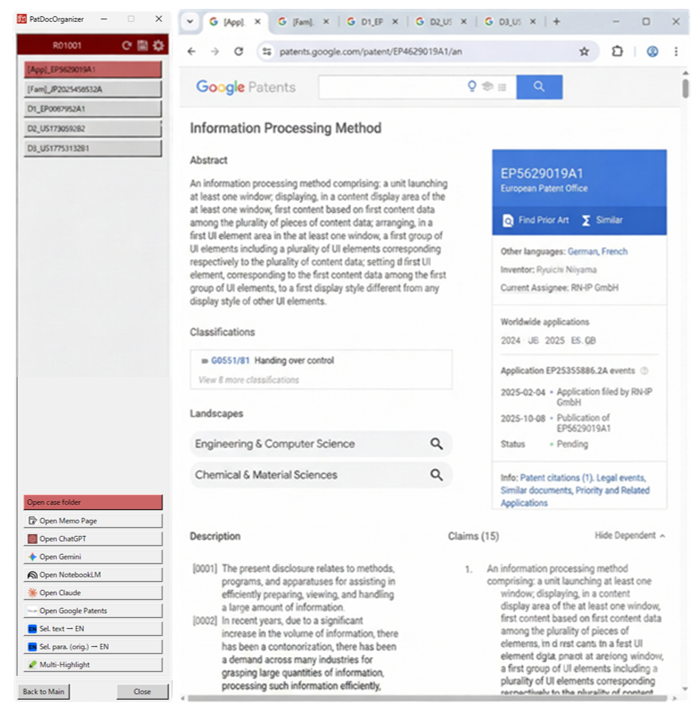
The upper part of the control panel shows command buttons (tab buttons) corresponding to Chrome tabs; the lower part has fixed buttons for various functions.
Click a tab button to switch the Chrome display to the content associated with that button.
Among the fixed buttons, try the "Open Case Folder" button and the "Open ChatGPT / Open Gemini / Open NotebookLM / Open Claude" buttons first.
The "Open ChatGPT / Open Gemini / Open NotebookLM / Open Claude" buttons open the default page for each AI service in a new tab. Conversations with AI can be recalled at any time by saving the current Chrome tabs and tab buttons using the 💾 icon in the toolbar.
* To use ChatGPT, Gemini, or NotebookLM with saved history, you must log in to each service with your user account. Because PDO controls Chrome via a driver, security checks may prevent smooth login in some cases — try reloading the page if that happens.
Clicking "Open Case Folder" displays the contents of the case folder in an explorer-style panel on the left side of the control panel, as shown below.
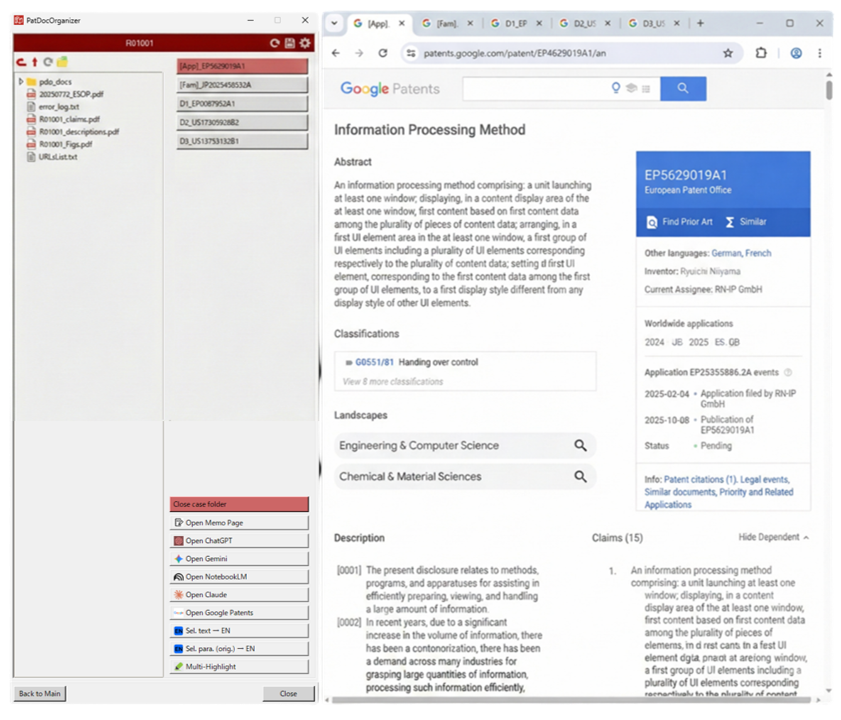
During the initial preparation process, if the claims, description, and figure tabs are used, separate PDF files are generated for each section of every patent document. Opening these on a tablet allows you to read and annotate documents by hand while rapidly browsing and searching many references on the PC monitor.
The case folder supports basic operations (copy, delete, etc.) as well as right-click menus with a variety of options — including Chrome display and PDF conversion — as shown below. Please try them out.
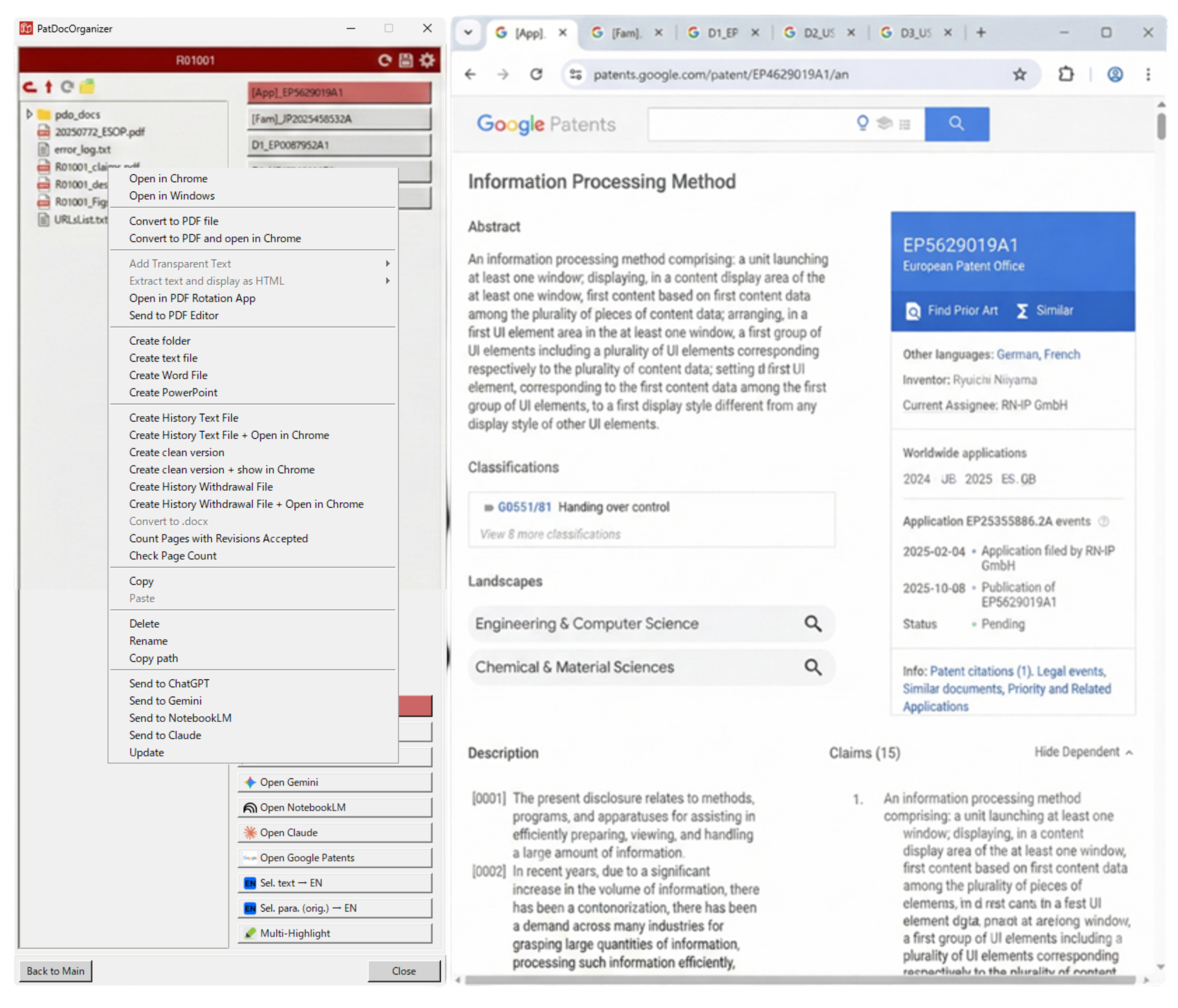
This pseudo-explorer lets you complete most tasks without switching between apps or opening additional windows.
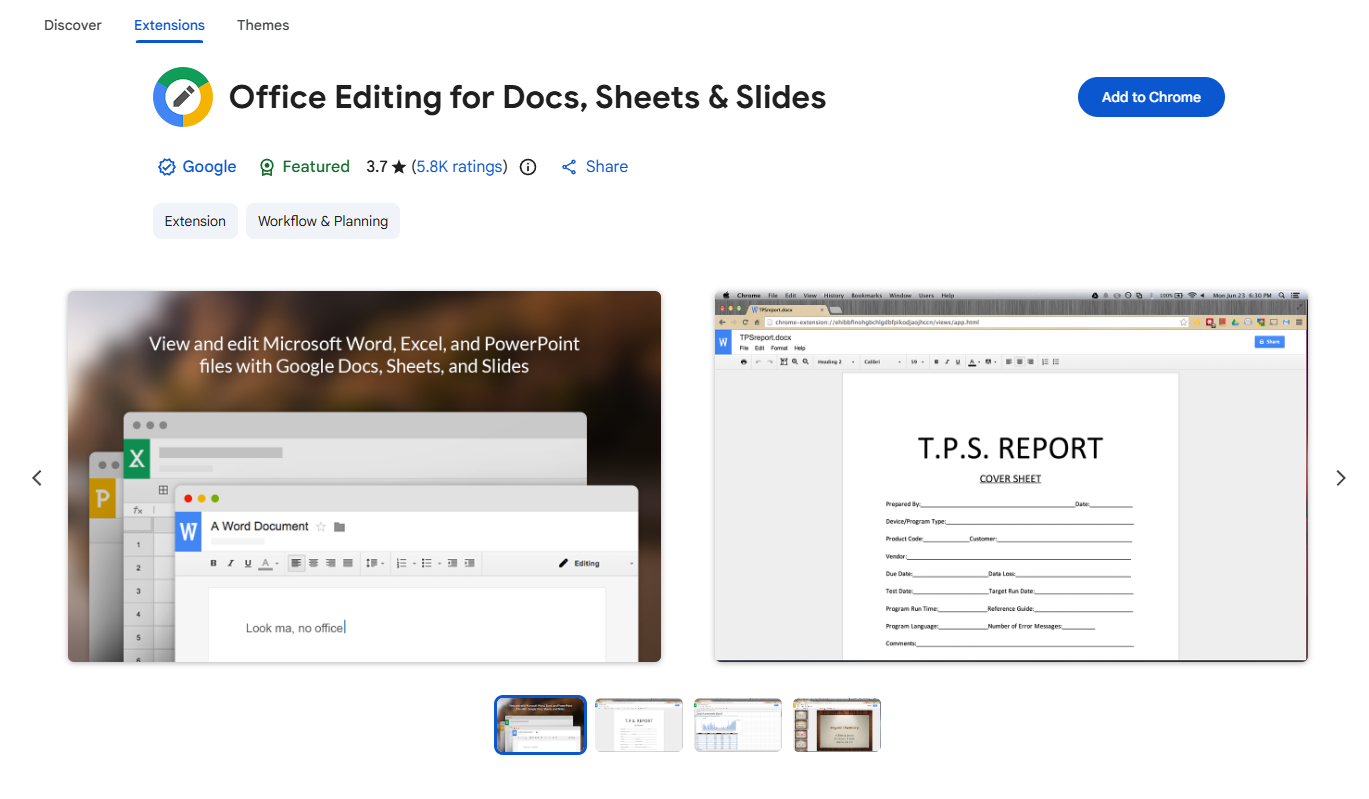
* To display Word and PowerPoint files in Chrome, you need to add the following Office-viewing extension from the Chrome Web Store:
To finish your work, click the close button on the control panel. Chrome will also close at the same time, and the positions and sizes of the control panel and Chrome will be remembered.
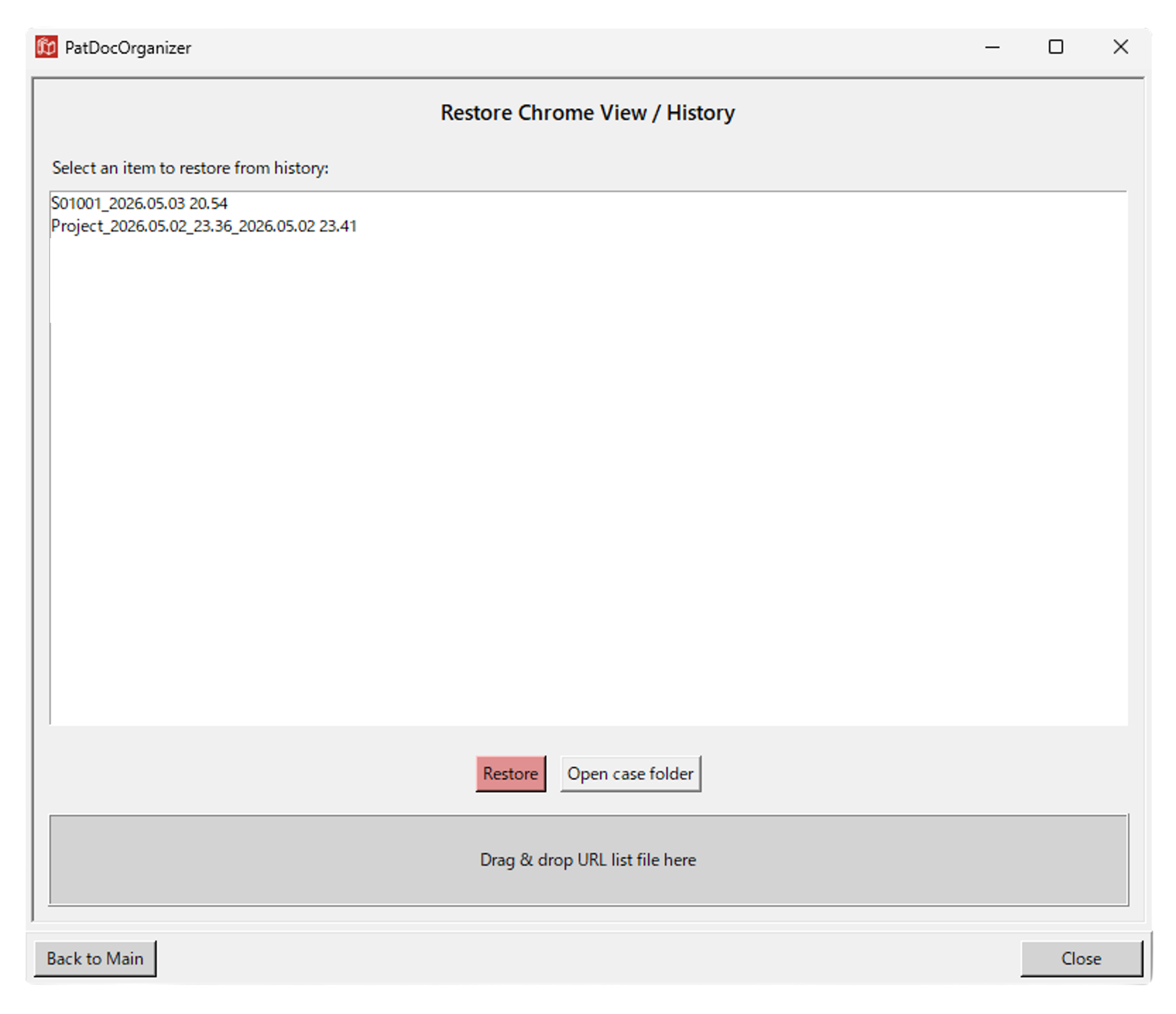
To resume work, launch the app and click "Restore Chrome Document Display" from the Main Menu.
A restoration window like the one below will open, showing the 20 most recent cases in the history. Select the target case and click "Restore" to reconstruct the Chrome display and tab buttons.
PDO has many more features — see the User Manual for details.